The Just Homepages guide
Make and host your own web page. Everything you need to make your page, change it, and get it found.
The guide as a PDF
To read offline, print or pass on: the whole guide, with its links.
1. About Just Homepages
Just Homepages gives you good one-page websites: what you do, and how to reach you, each on its own address. It's for the café, the plumber, the club, the tutor, the painter, the person with a project: anyone who needs a website, not a website project.
- Make it public: £12 / €14 / $15 a year for up to 10 pages and 100 credits. Each year it’s £12 / €14 / $15 for each 10 public pages, or part of 10 (10 pages: one block; 11–20: two). Each block adds 100 credits a year. Need more? Add a block any time — another 10 pages and 100 credits — paying only for the rest of your year. VAT is included in the UK and the eurozone; elsewhere, sales tax is added where it's due. No tiers. No ads — just one small line at the foot of your page.
- Free to try: Free to try: one page of your own, with 10 free credits (one described page and five changes). Build it, preview it and keep it as long as you like — putting it live is the paid part.
- Build it yourself free; credits for describing and changes. Describing a page uses 5 credits and asking for a change uses 1. Everything else is free (the table below). More credits: 100 for £12 (€14, $15), and 200, 500 or 1,000 at the same price per credit; unused credits carry over from year to year while your account is open.
- Your own domain (like
www.yourbusiness.co.uk), with email at it, is +£12 a year per domain. Not yet open to everyone: see section 8. - Free to try. Your first visit comes with 10 free credits — one described page and five changes — before you sign up or pay anything, and building it yourself is free all the way.
What's free and what uses credits
| What | Uses |
|---|---|
| A page built from your description | 5 credits |
| A new design (“make it look like…”, or a different direction) | 8 credits |
| Asking for a change | 1 credit |
| A drawn picture | 2 credits |
| Building it yourself, from a template | Free |
| Writing and changing the words by hand | Free |
| Choosing and changing templates | Free |
| Pictures: from our library, or your own | Free |
| Every element: headings, lists, tables, questions, files and more | Free |
| Forms, and the messages they bring | Free |
| Publishing, and updating your live page | Free |
| Sharing your page, and visitor figures | Free |
| Downloading your page | Free |
| Email forwarding at your address | Free |
| Taking a page offline, and putting it back | Free |
Free to try: 10 credits on your first visit — one described page and five changes — before you sign up or pay.
Each block adds 100 credits a year. More can be bought at any time, and unused credits carry over from year to year.
Your balance is always at the top of the screen once you're signed in ("86 credits"); press it to see what used them and to buy more. Every button that uses credits says how many, and before it does, the line under it tells you what you'll have left. If you haven't enough, it offers to Buy credits — or build it yourself, which is free.
What it isn't: an online shop with a basket, a blog, or a site with many pages. For those, a full website builder is the better choice.
2. How to start
On the homepage there are two ways in, side by side. Both lead to the same editor, every word is yours to change either way, and you can use both on the same page.
Inside your account, a new page (from Make another page, or when you first sign in with no page yet) starts on Start building, with the same two ways side by side: Tell us about your page on the left (a box to describe it, then Start my page, 5 credits) and Start from a template on the right (free: Plain & Modern and a few templates to start with, each opening your new page in it at a click, and See all templates → for the rest). On a phone the two are one above the other.
Start from a template
Pick a design, then write it your way. Choose Choose a template, find one you like, and press Use this template: you get a starter page in it with a place for each thing — your name, an opening, some words, your contact details. Fill it in, add what you like, and that's your page.
Describe it
Tell us about it in a few lines, the way you'd tell a friend, and we'll draft it for you to change. For example:
We're a family bakery in Totnes. Sourdough, cakes to order and the best sausage rolls in Devon. Open Tuesday to Saturday, 8 till 4.
Press Start my page. Next come a few quick questions, each with answers to tap: how bold it should feel, how visitors should reach you, and so on (every question has "Something else…" if none fits). Press Make my page, and your draft appears, usually in about a minute, ready for you to change.
The more real detail you give, the better the draft. Times, prices, where you are and how to reach you are what visitors look for first.
Using text you've already written
Written it already — an article, a CV, a club newsletter, a menu, a talk? Use it as it is. Choose a template, and on the editor's first screen choose Start with text I've written. Paste your text into the box, drop a .md or .txt file on it, or press Choose a file. Your browser reads the file; the file itself is never uploaded. It's laid out as you watch: the title and first paragraph open the page, each ## heading starts a section with its words beneath, a list of links becomes link cards, and ### questions with answers become questions and answers. Plain text works too: a short line on its own is read as a heading. It's free and instant, and uses no credits.
Nothing is rewritten. Pictures in your text that point to other places are left out, and the editor names them so you can add them from Pictures. Anything laid out differently from what you meant is one click to change, move or take off.
Already have a page? Add section → Use pre-written text adds your text's sections after everything already on it. And if you paste a finished piece into Describe it and it's too long, you're offered to use it as it is, free.
Once your words are in, two more sections can be made from them, 1 credit each: FAQs, written for you (four to eight questions a reader would ask, answered only from what your page says) and Summary, written for you (two to four sentences in your own voice, straight after the opening, headed In short, TL;DR, Summary or your own words). Nothing already on the page changes, and undo takes either off again.
3. Templates
A template is how your page is dressed: its colours, type, layout and character. There are over 160, from plain and modern to a 1970s green screen.
- Browse them at justhomepages.com/templates. Type in the search box ("pub", "wedding", "green") or use the filters across the top: Good for, Era, Colour scheme, Mood, Style, Motion. Each filter shows how many looks you'd get. Filters you choose appear in the search box in [square brackets]; press Reset to clear them.
- Look now opens a real sample page in that template. Use the ← → arrows (or your keyboard's arrow keys) to step through the templates you've filtered.
- Use this template opens a starter page in that template, ready to fill in (or, if you already have a page, puts your page into it).
Changing the template later is free, instant and keeps every word. Open Look (on the left), pick another under Template, and press Change the template. Not sure? Plain & Modern is the default for a reason.
Your own templates. When we draft your page, its design is kept as your own template, named after your page ("Rosie's veg boxes — original"), so trying other templates never loses it. In Look → My templates you can also type a design in Make it look like… ("a seaside postcard") and press Redesign (8 credits), then keep it with Save this template as mine → Save the template.
Private templates
Your own templates are private templates: only you can see them, and any of your pages can use one.
- Save one. Press Save this look at the top of Look. Unless you type a name, it's named with your account number and the date and time ("USER-1A2B-3C4D · 14 Nov 2026 09:56"). The page you saved it from now uses it.
- Rename it any time: Rename beside it in Look → My templates, or in My pages, under your pages.
- Use it on another page. Open that page, go to Look, and press Use this template beside it. My templates come first, before the other templates.
- The same look on all your pages. Change a template's look (whether the header stays at the top, motion on or off, or Change this template by asking) and every page that uses it changes too. First you're told "This will update 3 pages, 2 of them live", with the list. One press updates them all, and live pages are republished straight away. Only the look changes: their words and pictures stay as they are. If a page couldn't be republished (it still says "Your name" at the top, say), nothing changes and you're told which page and why.
- Undo puts the template and every page back as they were, in one go, until one of those pages is changed again.
- Just this page. Use a copy of this look on this page only keeps the page's look as its own: changes to the template no longer change it.
- Delete asks first if pages use the template. They keep the look they have now, as a copy of their own.
Linked pages (see Linking pages together) can all use one private template: choose it as The group's template.
4. Editor
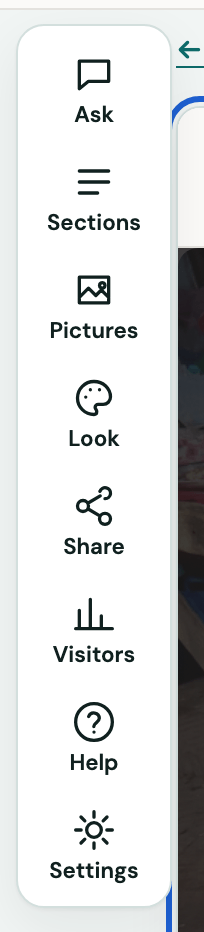
Your page fills the screen, as it really looks, and you change it right there. It scrolls with the window, like any web page. The buttons on the left (the rail) open one panel at a time over the page's edge — Ask (ask for a change), Sections (what's on your page), Pictures, Look (the look of your page), Share (share & get found), Visitors, Help and Settings — and a click anywhere outside a panel closes it again (so do its × and Esc; anything you'd typed in it and not sent is still there when you open it again).
At the top right, Type on page · Formatting codes chooses how you write (see below). The toolbar along the bottom stays in one place:
- Undo and Redo step back and forward through your changes.
- Add section adds something new: a heading, text, photos, a form, FAQs and more (see below). The + between two sections (and at the end) does it in one click: a new Heading + Text section, there, ready to type.
- Ask for a change asks us to make a change for you, in your words (1 credit).
- Help has a search box, the formatting cheat sheet and a link to this guide.
- Save my page keeps a page you haven't saved yet on your account, on any device. Once it's saved, Put it live shows the way to your own address.
- Preview (or the P key) shows the page exactly as visitors will, at a phone's or a laptop's width; Esc comes back.
Stuck? Help has a search box at the top: type what you're after — "browse", "domain", "save look", "offline" — and it shows where that is, with Take me there to open it.
Change the words yourself
Click any words on your page and type: the caret goes where you clicked, and the page is what you change. A slim bar sits on the section's edge — never over its words — with Hide, the ↑ ↓ arrows, History, Remove, More…, Cancel and Done. Done keeps your words (so does clicking anywhere outside the section), and Cancel (or Esc) puts the section back exactly as it was. Select some words and a small bar above them makes them bold, italic, a heading, a list or a link (press Bold, Italic or Link with nothing selected and a small note says to select some words first; Heading turns the line you're on into a heading): press the link button (or ⌘K / Ctrl+K) and type the address, an email or a phone number in the box under the words. Type / at the start of a line for headings, lists, links and quotes. The name at the top of your page, in its header, is words like any other: click it and type your own. Until you set a title in Settings, the title in the browser's tab follows that name.
A section with no words of its own (a picture, a photo grid) says on its bar what to do: click the picture to change it.
Prefer to see the formatting? Switch to Formatting codes at the top right: every section's words show as Markdown, a simple way to format text, in a box beside it. Type on page switches back. The choice is remembered on that device, and switching never changes your words:
| Type this | To get |
|---|---|
**bold** |
bold |
*italic* |
italic |
## A heading |
a heading |
- an item |
a bulleted list |
[our menu](https://…) |
a link |
Press Help for the cheat sheet, with examples for headings, questions and answers, forms, tables, files and more, or see every format on one page: justhomepages.com/guide/writing. Changes you make by hand are free and unlimited.
Change something by asking
Press Ask for a change, type what you want and press Ask for a change again:
- "Make the opening friendlier."
- "Add our Saturday hours: 9 till 1."
- "Put the prices above the photos."
Each ask uses 1 credit (a drawn picture uses 2, and a whole new design — Make it look like… or a different direction — uses 8). If a change doesn't go through, its credits come straight back. Every change can be undone with Undo (undoing doesn't give credits back). Changes you make by hand never use credits.
What's on your page
What's on your page (Sections, on the left) lists every section of your page, top to bottom. You can:
- Switch a section off to keep it without showing it, and switch it on to bring it back.
- Move a section by dragging it, or with its ↑ ↓ arrows. The top of the page always stays first. You can also drag a section on the page itself, by the grip at its top left (on a phone or tablet it's always there), or press Alt + ↑ / ↓ while it's open.
- Add section for something new (see below). Each one is previewed in your page's template before you add it: the whole section, made small to fit, with − and + to zoom out and in.
The sections you can add
| Section | What it's for |
|---|---|
| Heading | A big title that starts a new stretch of your page, with a short line under it if you like. |
| Text | A few paragraphs of words, with a link or two. (The + between sections adds a heading and text together.) |
| List | What you offer, with prices if you like. |
| Opening hours | When you're open, one line a day. |
| Contact | Your phone, email and address, with buttons to copy them. |
| Photo grid | Several of your own photos, side by side in a grid. |
| Photo slideshow | Several of your own photos, shown one at a time. |
| Picture wall | Rows of photos that drift slowly; visitors can pause them. |
| Side by side | Two to four short panels next to each other (each a ### heading and a sentence or two); on a phone they stack. |
| Before → after | Two panels side by side: the old shop and the new one, or a room before and after decorating. |
| Table | Prices, timetables, comparisons. |
| FAQs | Questions that open their answer when clicked. Write ### Your question and the answer underneath. |
| Form | A message, enquiry, booking, RSVP or mailing-list form (see section 6). |
| Certifications and memberships | The logos of the bodies that approve or insure you, each with an optional link. |
| Links to other websites | Cards linking to your other places online. |
| File to download | A PDF (a menu, a price list, a brochure) for visitors to download. Up to 10 MB, and every file is checked for viruses before it can go on your page. |
| Quote | A kind word someone said, and who said it. |
| Button | One thing you'd like people to do: a line and a button ("Book a table"). |
| Visit counter | "1,234 visits", styled to match your template. Counted every night. |
| Logo | Make a simple logo from your name or initials, an optional drawing and a shape. It follows your template's colours and type. Or upload your own (SVG or PNG) under Settings → Logo. |
| Something else | Anything else, in Markdown. |
| Use pre-written text | Your own text, pasted or from a .md or .txt file, laid out as sections after everything already on the page (see section 2). Free. |
| FAQs, written for you | Four to eight questions a reader would ask, answered only from what your page says. 1 credit. |
| Summary, written for you | Two to four sentences in your own voice, after the opening. 1 credit. |
Pictures
Press Pictures (on the left):
- Upload your own once your page is saved: up to 12 on a page. Before your first upload you'll tick a box to confirm you have the right to use your pictures.
- Choose from our library of free-to-use photographs (good for setting a mood until your own are ready).
- Click a picture on your page for its own toolbar: Choose what shows (drag the picture in its frame, or click the important bit, and see the crop on a phone and a laptop as you go), its size (Small, Medium, Large or Full width) and More… (its description, replace it, or take it off).
- More than one photo in a section? Press Add more pictures here → and the section becomes a photo grid, with its photo first; or add a photo slideshow, a picture wall or a before → after.
- Show on the page or keep a picture in your library without showing it.
- Add a short description of each picture. It helps people who can't see it, and it helps search engines.
Settings
Settings holds the things that apply to the whole page: its title and description, its Address (with Change, any addresses under its name, and any old addresses it keeps, each with what it shows and Let it go), its logo, whether the header stays fixed at the top, whether search engines may list it, Show my page in Browse, and Download your page: your whole page and its pictures as a zip file, which works in any browser and on any web host.
The look of your page
Look changes the template your page wears (the words stay as they are) and whether it moves (motion on or off). Save this look, at the top, keeps the look your page has now as one of My templates, which come first in the panel, before the templates to choose from.
5. Saving and putting it live
- Until you save it, your page is kept in this browser: the editor says Saved in this browser beside its title (and Saved once it's on your account). Save my page keeps it on any device: it asks for your email address and sends you a link and a six-digit sign-in code. There's no password. Your page is then on your account.
- Choose your address (
yourname.justhome.page) and press Reserve it; it's held for you for 7 days. Payment isn't open yet: for now, press Leave it with us and we'll email you the moment you can put your page live (or use an invitation code if you have one). When payment opens, Make it live takes you to payment, and your page is on the web straight away. - Under one of your names: once you have a name, another of your pages can live at an address under it, like
faq.yourname.justhome.page. Choose Under one of your names, type the first part and press Reserve it. It counts as a page like any other. (More in section 9.) - Change your address at any time, live or not, in Settings → Address (or when you put it live or share it). You choose what happens to the old address: let it go, or keep it. (More in section 9.)
- Your ID looks like
USER-1A2B-3C4D. It's in every email we send you, and you can sign in with it too. - Keep a way back in. Keep the recovery codes we show you when you first sign in somewhere safe (you can make new ones on your account page), and add a backup email there. If you ever lose access to your email, either one gets you back in.
You can make more than one page: My pages (at the top of every screen) shows them all as cards, newest first, with Make another page as the first card. Each page has its own address and template. Each block holds 10 public pages; drafts don't count. Without paying, an account has its one free page. (For now, while we're opening, it's one page per account unless you have an invitation code.)
Take my page offline whenever you need to, from the editor or My pages: one press and a confirmation, and within a minute the page (and its own domain) shows "This page is offline." Nothing is deleted — its words, pictures, address and domain stay yours — and Put it back online brings it straight back. It's free and doesn't change what you've paid. In an emergency, Take all my pages offline is on your account page.
6. Forms and messages
A form lets visitors contact you without you putting your email address on the page.
- Add section → Form, then choose a starting point: Message, Enquiry, Booking request, RSVP or Join the list.
- Add, remove or reorder fields (up to 10). Every form asks for the visitor's email.
- Press Save the form.
How it stops spam: after sending, the visitor gets an email with a link and presses Send my form. Only then does the form reach you. Messages from robots and fake addresses never arrive.
You get each message by email (press Reply to answer the sender), and they're all kept for 90 days under Messages & responses, where you can filter them, download them as a spreadsheet (Download CSV), or block a sender.
For your security, a form can't ask for passwords, card numbers or ID numbers.
8. Linking pages together
Got more than one page — a business with a shop and a café, a club with crews and fixtures, a family? Link your pages knits them into a group. Each page keeps its own address and stays one page; a menu between them lets visitors move from one to the next. It's free.
Make a group
In My pages, choose Link your pages, then Make a group. Give the group a name, add the pages to put in it (two or more, all from your account — a page can be in one group), and choose how they're linked:
- a menu bar at the top of every page — on a phone it folds into a Menu button;
- a footer strip at the bottom: "Also from your group:" and the other pages;
- or both.
Drag the pages into the order you want (or use the arrows). Each link says the page's title unless you give it a label of your own, and the page a visitor is on is marked. Tick Use one template for the whole group and changing the template on any page changes them all; leave it unticked and each page keeps its own template, with the menu in that page's style. The group's template can be one of your private templates: every page in the group then uses it, and changing it changes them all (see Private templates).
Every change — a new order, a new label, a page added or taken out — updates every page in the group within a few minutes, with nothing to publish. A page that's offline, not yet public or waiting for a block drops out of the menu until it's back. A page with its own domain is linked by that address.
Pages that link to you
Anyone can link to any page — that's the web. When another Just Homepages page links to yours, it shows in your page's visitors view under Pages that link to you: its address, the words of the link, when it first appeared and the visits sent — how many people arrived by it. If you'd rather a page didn't link to yours, choose Deny: within a few minutes the link on that page becomes plain words, not clickable, and its owner sees why. Allow again puts it back. Links between your own pages can't be denied. Links from other websites show as referring sites; they can't be denied.
Your links
Your links lists the Just Homepages pages your page links to, and the visits each link has sent: "Sent 23 visits to riverside.justhome.page this month". The menu between pages in a group counts the same way. Visits are counted as people arrive, from the page they came from — no tracking, no cookies, no redirects. Links to other websites aren't counted.
9. Addresses, domains and email
Your address
Each page has its own address: a name of your own (yourname.justhome.page), or an address under one of your names (faq.yourname.justhome.page). You choose it when you put the page live, and Settings → Address shows it.
Change your address
Any page can change its address at any time, to any free address: a new name, or one under one of your names. Open Settings → Address and press Change (the same chooser is in Put it live and Share), pick the new address, and answer What should happen to your old address?
- Let it go (free) — the default. Your old address stops working straight away, and anyone can take it.
- Keep it — it uses one of your pages, counted against your blocks like any page, and shows one of:
- Nothing — kept for you: not public. Visitors get "not found", and search engines leave it out.
- A "we've moved" notice: a simple page in your page's template, with a link to the new address.
- Forwarding to the new address: visitors and search engines go straight there (a permanent redirect).
- A copy of the page: the same page at both addresses; search engines treat the new one as the main one.
If every page in your blocks is in use, Keep it says so: add a block, or let the old address go. A page that isn't live yet can keep its old address only privately; once it's live, it can show a notice, forward, or show a copy. Change what a kept address shows, or let it go, any time in Settings → Address.
Addresses under your names
Once you have a name, another of your pages can live at an address under it, like faq.yourname.justhome.page: choose Under one of your names, type the first part and press Reserve it. Each one is a page of its own and counts like any page. Each block of 10 pages lets you use addresses under one of your names (two blocks, two names, and so on); to use another name, add a block. The first address under a name takes a few minutes to set up; after that, new ones work as soon as they're live. If you renew with fewer blocks, everything stays as it is for 30 days; then the addresses under any extra names go offline, kept, until you add a block.
Email at your justhome.page address (free)
In Your address and email, switch on forwarding and choose up to five addresses (hello, bookings, orders, info, and one of your own, like hello@yourname.justhome.page). Mail sent to them is checked for spam and viruses and forwarded to your account email while your page is live. Replies go from your usual email.
Your own domain (+£12 a year)
Not yet open to everyone: in Your address and email it says Coming soon. Press Tell me when and we'll email you when it opens. When it does, you'll use a domain you already own, such as www.yourbusiness.co.uk:
- In Your address and email, under Your own domain, type it and press Connect.
- We show you one record to add where your domain's DNS is kept (usually the company you bought it from), with step-by-step instructions for that company. You don't move your domain, and usually there's nothing to change but this one record. Your existing email stays as it is.
- We check automatically and show Connected ✓, usually within half an hour of the record going in. The security certificate is set up and renewed for you.
- Choose whether your
justhome.pageaddress keeps working too, or sends visitors to your domain.
Once it's connected, you can also switch on email forwarding at your own domain (two more records, which we show you). If the domain already has email, we'll warn you and leave it alone unless you confirm.
We don't sell domains. If you don't have one yet, buy it from any domain company, then come back.
10. Account, billing and help
- Billing (on your account page) will show renewal dates and receipts, and let you change your card or cancel. Not yet: payments aren't open. When they are, they're handled by Paddle, who also handle VAT and sales tax.
- Credits (at the top of the screen, and on your account page): your balance, what used them, and Buy credits.
- Refunds: any payment, for any reason, within 14 days, except credit packs, and except the transfer fee for handing pages over, which follows its own rule (see Refunds). A refund takes away that payment’s unused credits. A refunded year — the first or a renewal — takes the account back to its free page and its pages offline; a refunded extra block means one block fewer, and public pages over what’s left go offline. Nothing is deleted.
- Cancel any time (when payments open). Your pages stay live until the end of the year you've paid for.
- Locked out? If you can't get into your email, Recover your account on the sign-in page gets you back in with your ID plus a recovery code, your backup email, or (once you've paid) the receipt ID from a payment.
- If we ever close, we'll tell every customer at least 90 days before. Your page is plain HTML: download it from Settings and put it anywhere.
- Privacy: your page has no cookies, no trackers and no scripts from anyone else, so your visitors never see a cookie banner.
- Rules and reports: what we take down, how to report a page, and what happens to yours if someone reports it, are in Legal, in plain English.
- Help: use Tell us what happened (at the foot of the screen once you've saved your page, and on your account page), or email hello@justhomepages.com. It reaches us directly.
11. Making a site for someone else
Made a site for a customer, a club or a friend? Hand it over, and it moves into their own account with everything that goes with it.
- Hand over to a customer (in My pages, or Hand over on a page's card): tick the names to hand over. A name brings its page, every address under it, its own domain, its forwarding addresses and any old address its pages keep. Drafts with no name yet can be ticked one by one. A suspended page, or one with an open report, can't be handed over.
- Their email, twice, and a message if you like (plain text, up to 1,000 characters). There's no price box: anything they pay you is between the two of you, and Just Homepages takes no part in it.
- Before you send, the summary shows the pages, addresses and domains, and what they'll pay for their own account (a new account: one block for every 10 public pages — drafts are free — plus each own domain). Then Pay £12 and send the offer (€14 or $15 elsewhere). If the hand-over doesn't happen, we refund £11 (we keep £1 for payment costs); if it fails on our side, we refund all of it.
- While the offer is open (14 days), its pages can't be changed: they show Offered to … until … with Withdraw. Live pages stay live. We remind them three days before it ends.
- They open the link in our email, see everything that's in it, and choose Take over this site (signing in with that email) or Decline. If their account already has room, they pay only for any own domain — or nothing at all.
- Once it moves, the pages are theirs: the same addresses, their forwarding and form messages going to their email, and their own copy of any private template the pages use. You keep no access. Messages and form answers sent to you before the move stay yours, under Handed over in My pages.
- Own domains keep working through the move. Their registration stays with whoever registered it, so if you registered it, help them move it into their name. Each domain's settings show Working ✓, Needs your attention (with the fix), and Registration ends … where the registry publishes it; we email the owner if it stops working, and 30 and 7 days before the registration ends.
Just Homepages is made by Forbes Ventures Ltd, a UK venture studio with more than 20 projects in its portfolio, which also turns ageing systems into resilient, modern ones for other companies.